Table of Contents
Share


Yahoo! JAPAN Ads Manager provides advertisers access to necessary tools and allows them to perform various tasks directly on the screen, such as creating ads and reviewing performance data.
In this article, we will explain the basic features of the Ads Manager and go over the most essential tools.
Yahoo! JAPAN Ads Manager – account structure
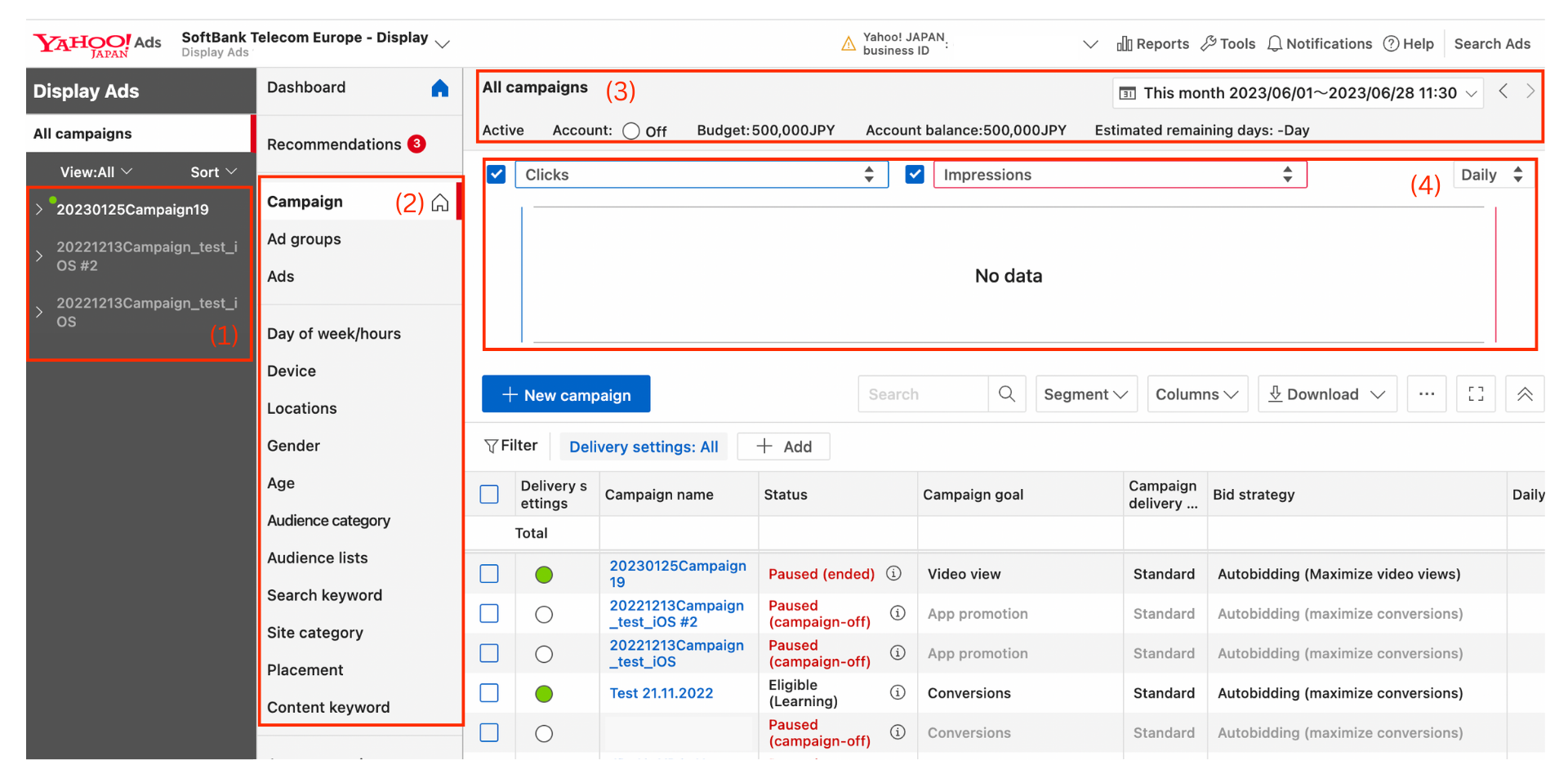
Yahoo! JAPAN Ads Manager screen is divided into a few sections:
- Campaigns and ad groups under the displayed account are presented in a tree structure. It is possible to narrow down the displayed content or sort it according to your preferences.
- You can find settings for the currently displayed item (such as ad details or targeting settings) in the next column.
- Basic information about the currently displayed item or account is presented at the top of the screen, including budget, status, and advertising period.
- Performance data of the currently displayed item is displayed in graph format. For more details, refer to the section "Reviewing Performance Data in the List View (New Advertising Management Tool)."
- Is is possible to see further performance metrics of the currently displayed item in a list format below the graph. Note that "cost" excludes tax.
Selecting advertising account data
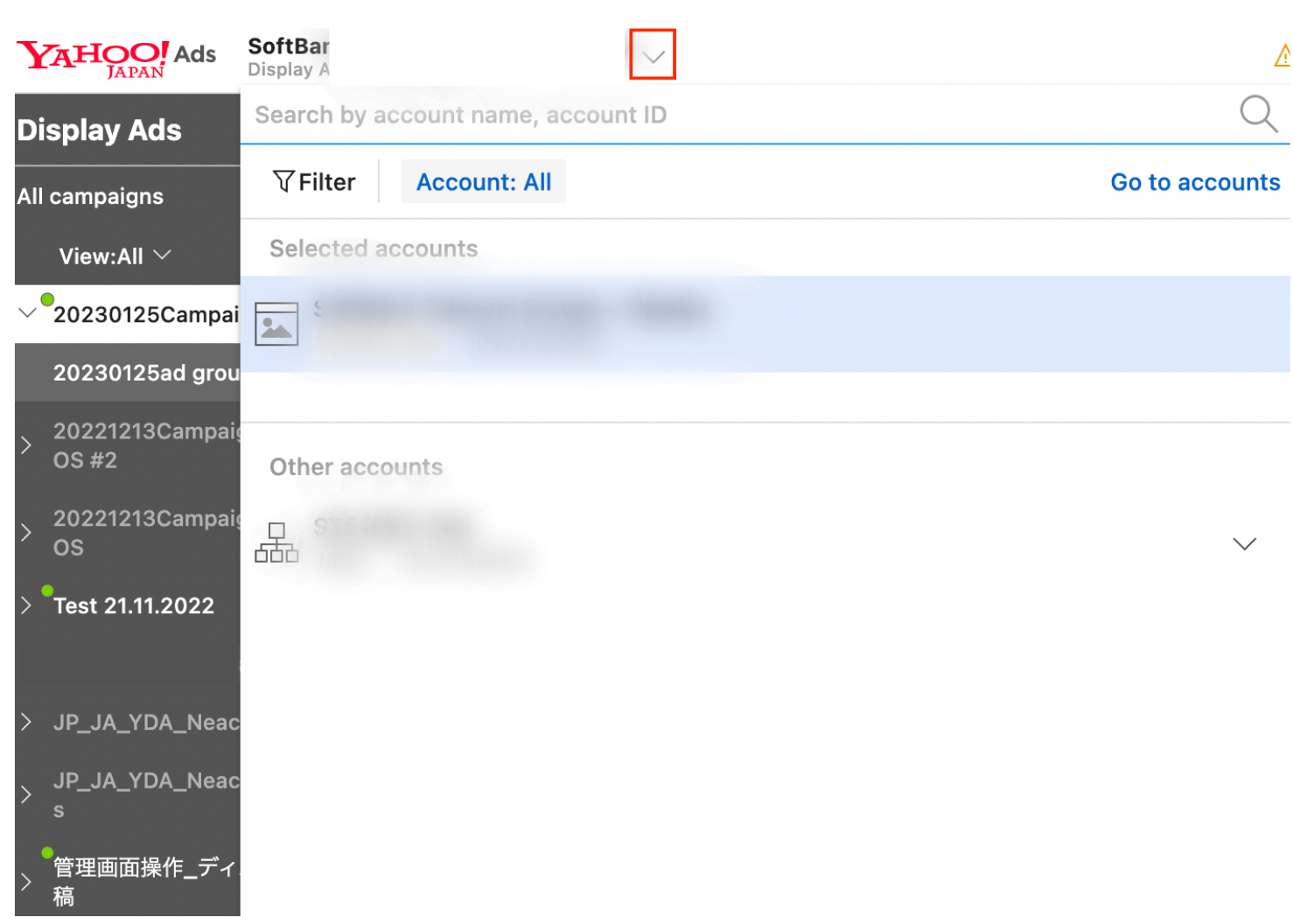
To switch the currently displayed account, click the "V" next to the account name at the top of the screen and choose a different account from the available menu.
Additionally, you can search for accounts by entering the account name or account ID and clicking the magnifying glass button.
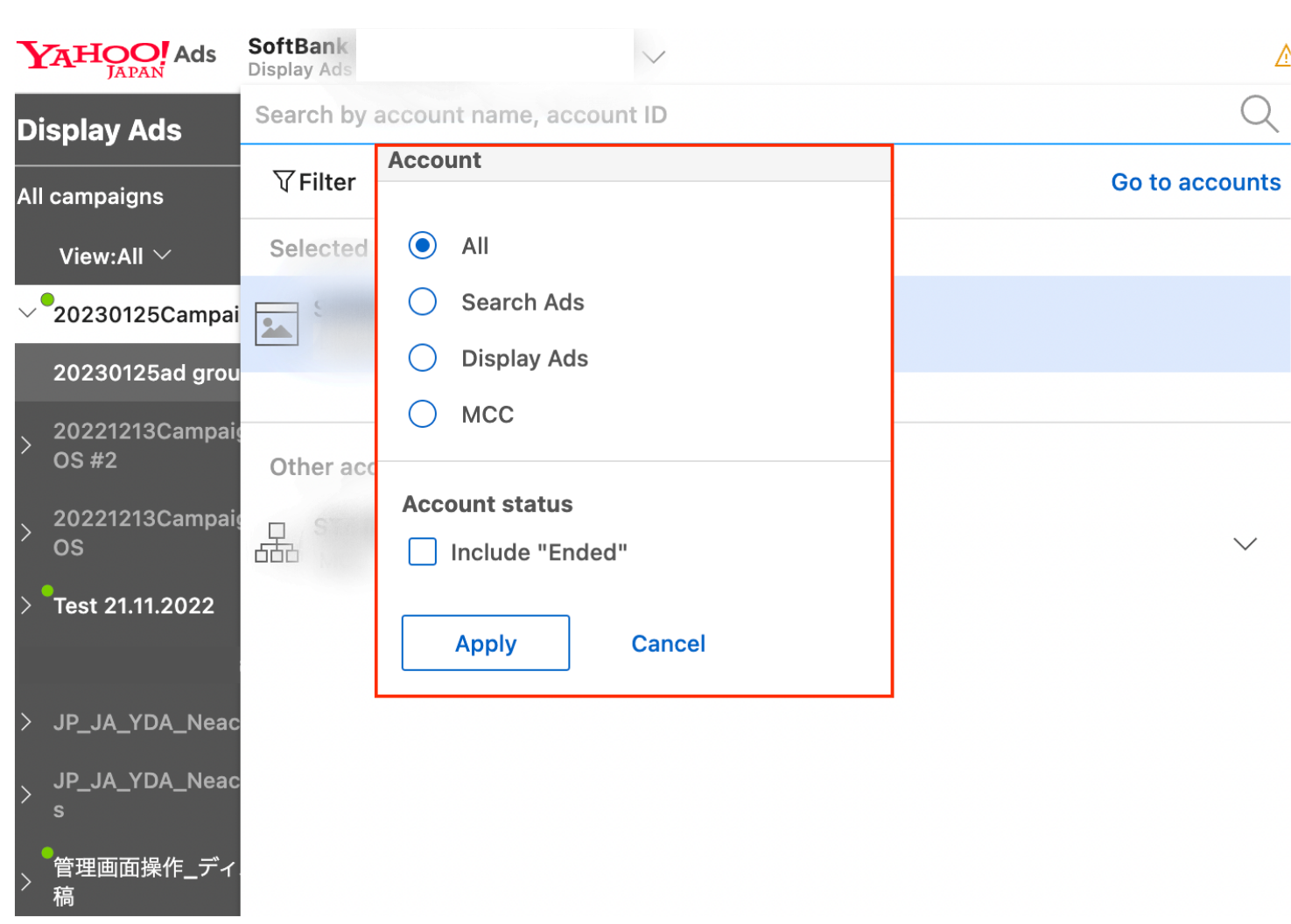
You can also filter accounts by type by clicking on ‘Account: All’ button next to the filter option.
Campaign and ad group display
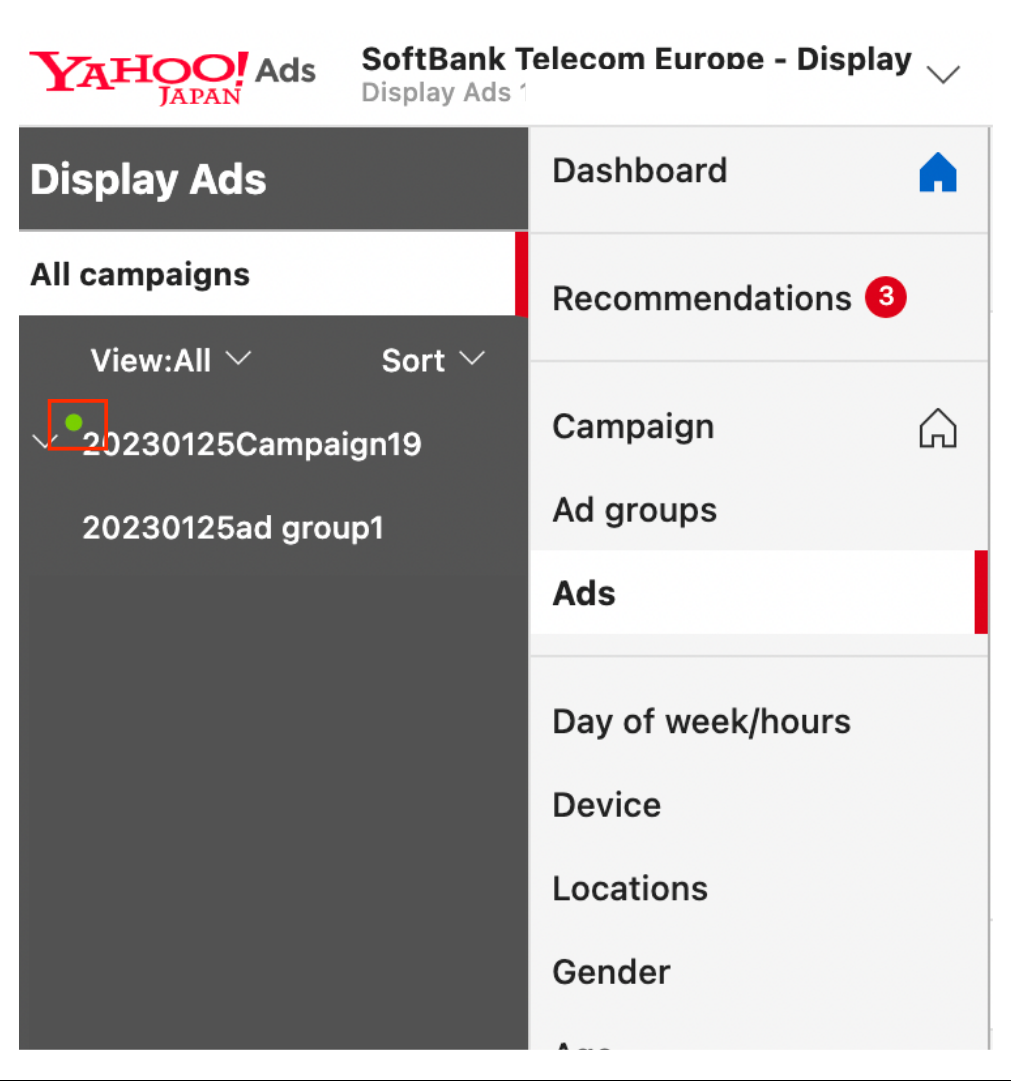
To narrow the displayed data to a specific campaign or ad group, select them using the side menu.
Tip: Campaigns that are currently active have a green circle.
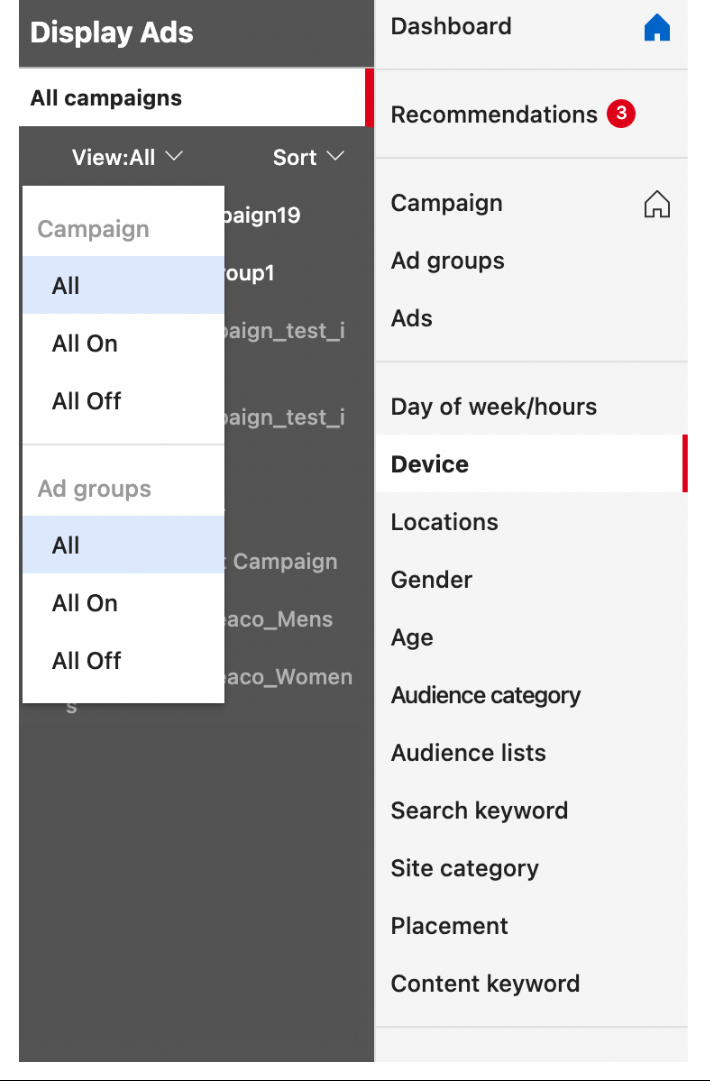
You can sort ampaigns and ad groups by name or status (active/inactive).
Displaying all campaigns
Selecting "All Campaigns" will display all the items and settings associated with campaigns under the account, both active and inactive.
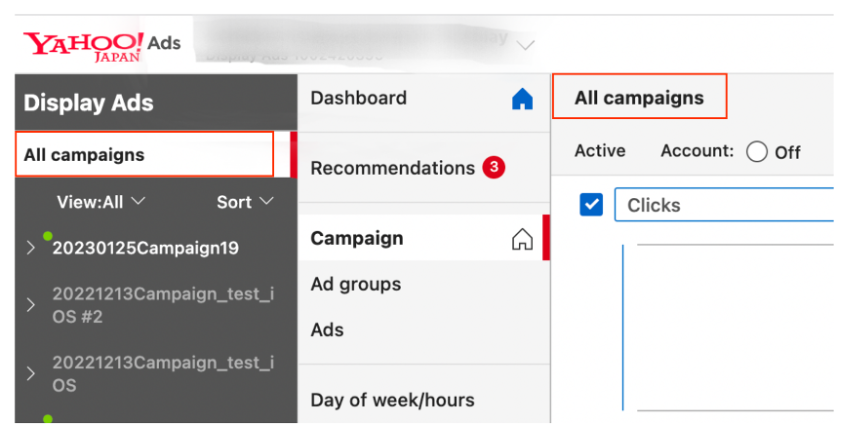
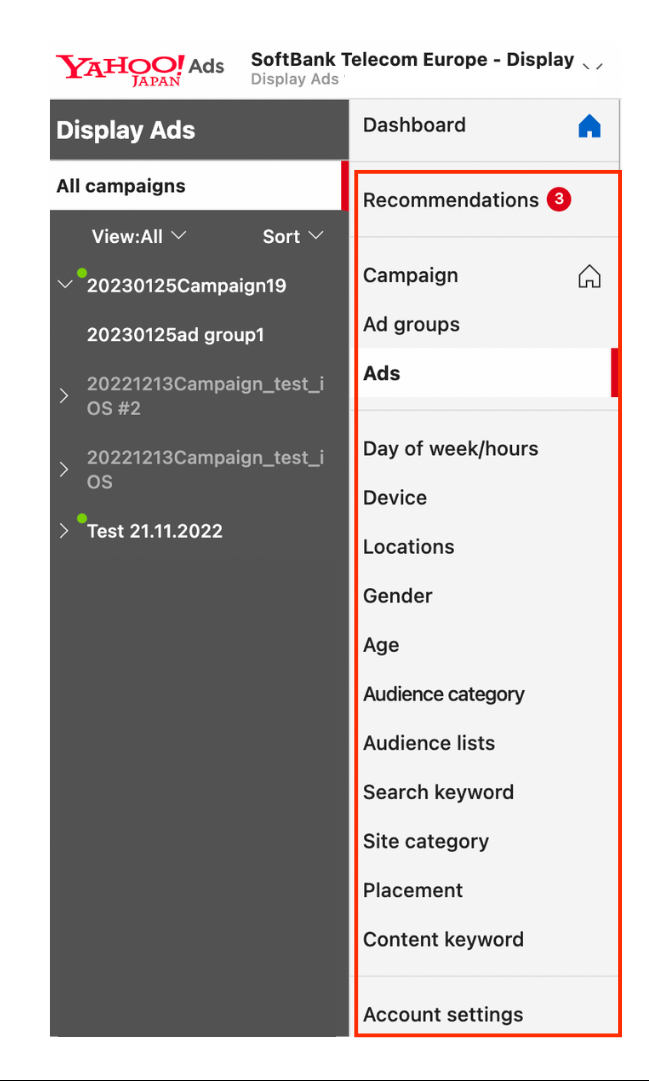
Use the side menu to display further information about selected campaigns.
Tip: If you have changed settings in the ‘view’ or ‘sort’ options, it will limit the displayed campaigns according to your preferences.
Optimisation suggestions
You can review and apply optimisation suggestions for your account by accessing the "Recommendations" on the left side of the screen.

Campaign delivery status: on / off
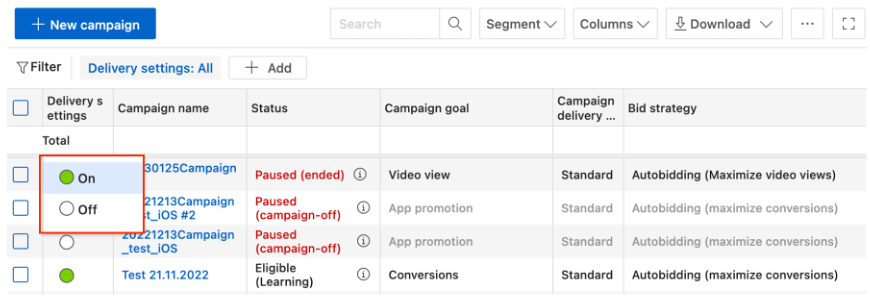
Easily activate or deactivate the campaigns by changing the delivery status settings.
Inline edit function
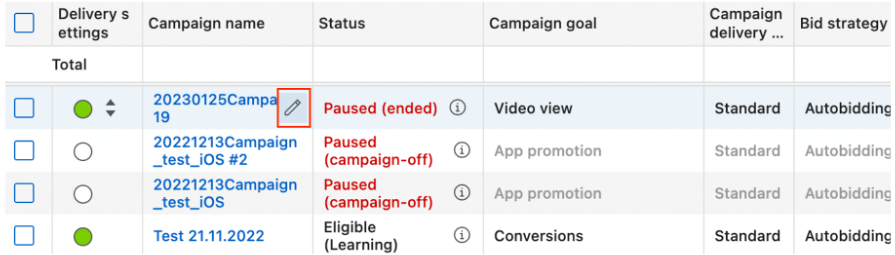
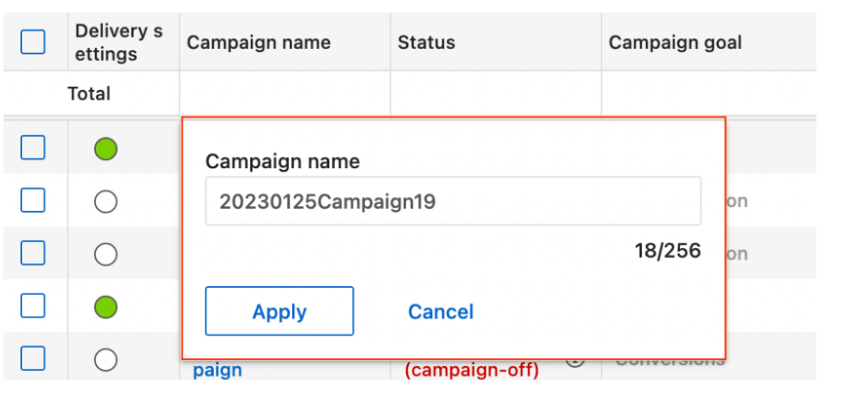
It is possible to edit items by hovering a mouse over an item – an edit icon will appear, allowing for making necessary changes.
Batch actions
First, check the boxes for the items and settings you wish to change, and click "Batch Operation" to apply group settings / delete items, etc.
Labels
The label function allows users to classify submitted items into groups by attaching a word or phrase (label).
Downloading Data
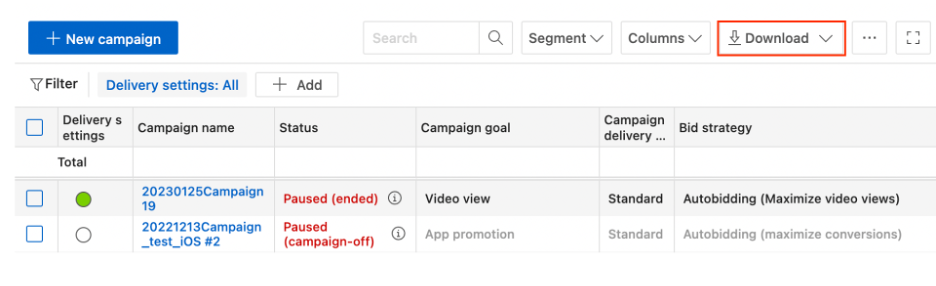
You can download various data reports by pressing the "Download" button at the top of the data area.
Campaign status
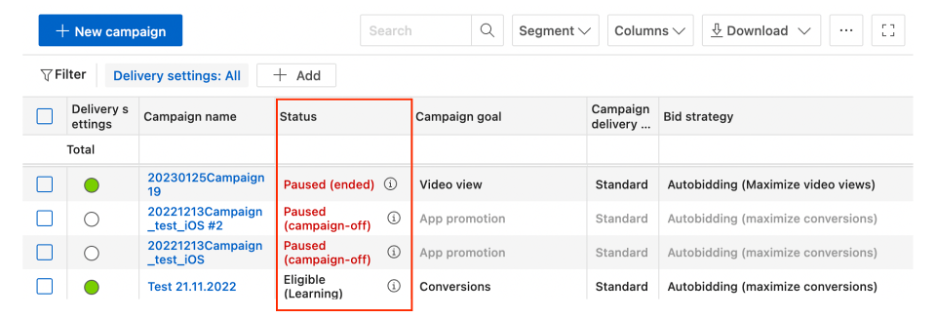
You can check the current item status in the " Status" section for campaigns, ads, and keywords.
If your campaign has been rejected, lick the (i) icon to read about the reasons for rejection.
Reporting
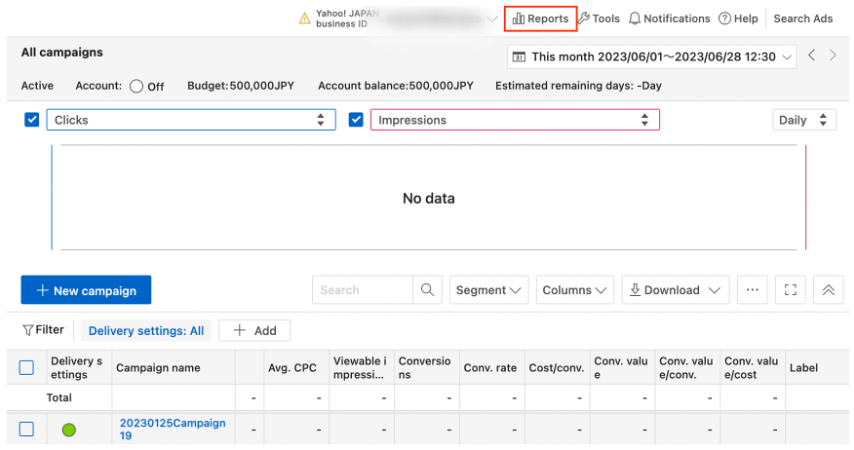
You can create a performance report in the "Reports" section the upper right corner of the screen.
Additional Tools
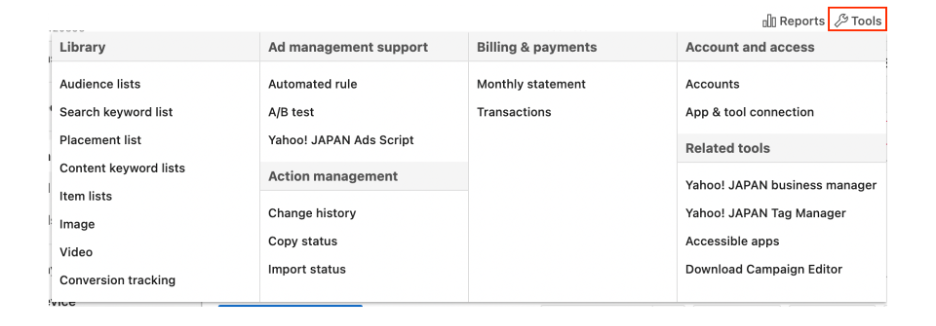
From the "Tools" icon in the upper right corner of the screen, you can access various functions such as audience management, billing, and A/B testing.
Notifications
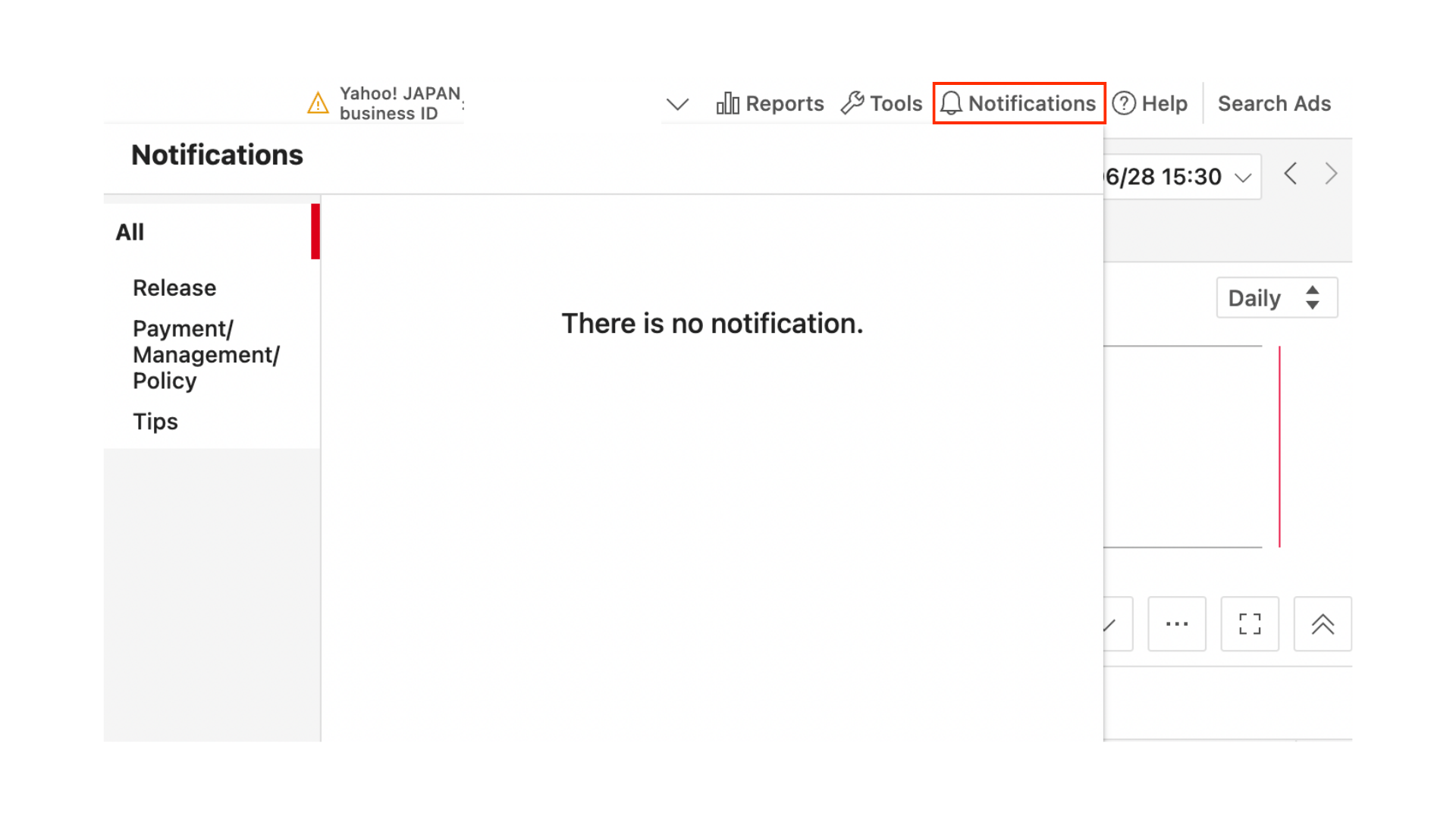
Click on the bell-shaped "Notifications" icon in the upper right corner of the screen to check for notifications from Yahoo! JAPAN.

Want to learn more?
⋅ Read our guide on Yahoo! JAPAN advertising here →
Refer to the following Yahoo! JAPAN help articles for information on creating different types of items (campaigns, ad groups, ads, keywords):

Contact us at DMFA to find out more about our services and how our bilingual consultants can assist you.
Simply fill in the form and our team will get back to you as soon as possible →